
Which ZIP to download from GitHub
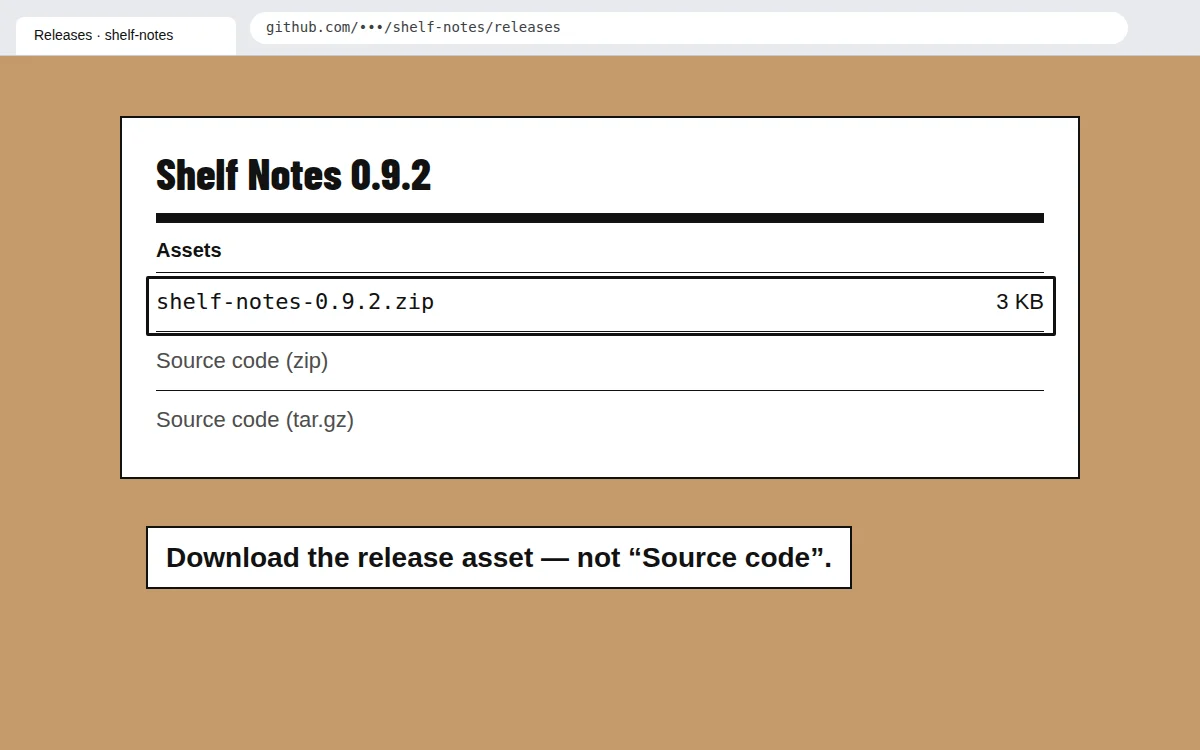
A release usually lists three files: the author’s own ZIP (often named after the extension and version), "Source code (zip)" and "Source code (tar.gz)". Take the first. If the release has only the two source archives, open the README: some projects ship a ready-to-load folder in the source, others need npm run build first. If you drop an unbuilt source ZIP, CRX Starter tells you it isn’t an extension package rather than installing something half-made.
The Load unpacked way, for comparison
Chrome’s built-in route — loading the unpacked extension from a folder — still works. This is what each route asks of you:
| Load unpacked | CRX Starter | |
|---|---|---|
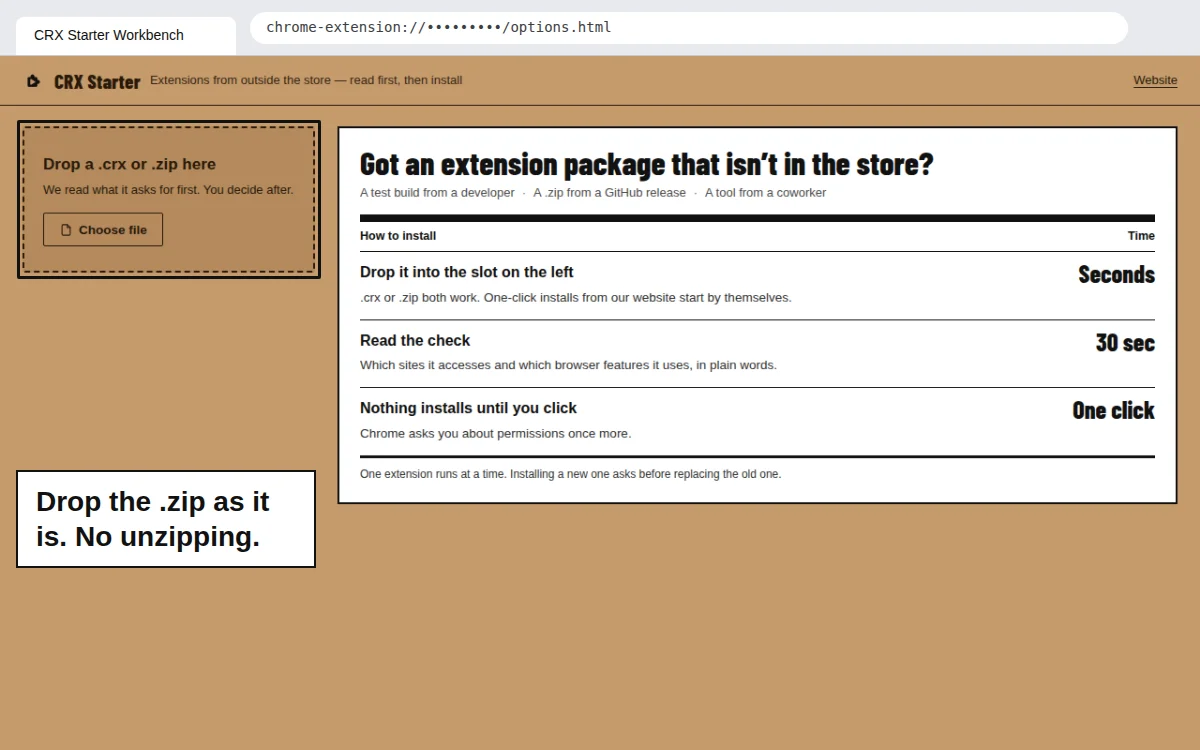
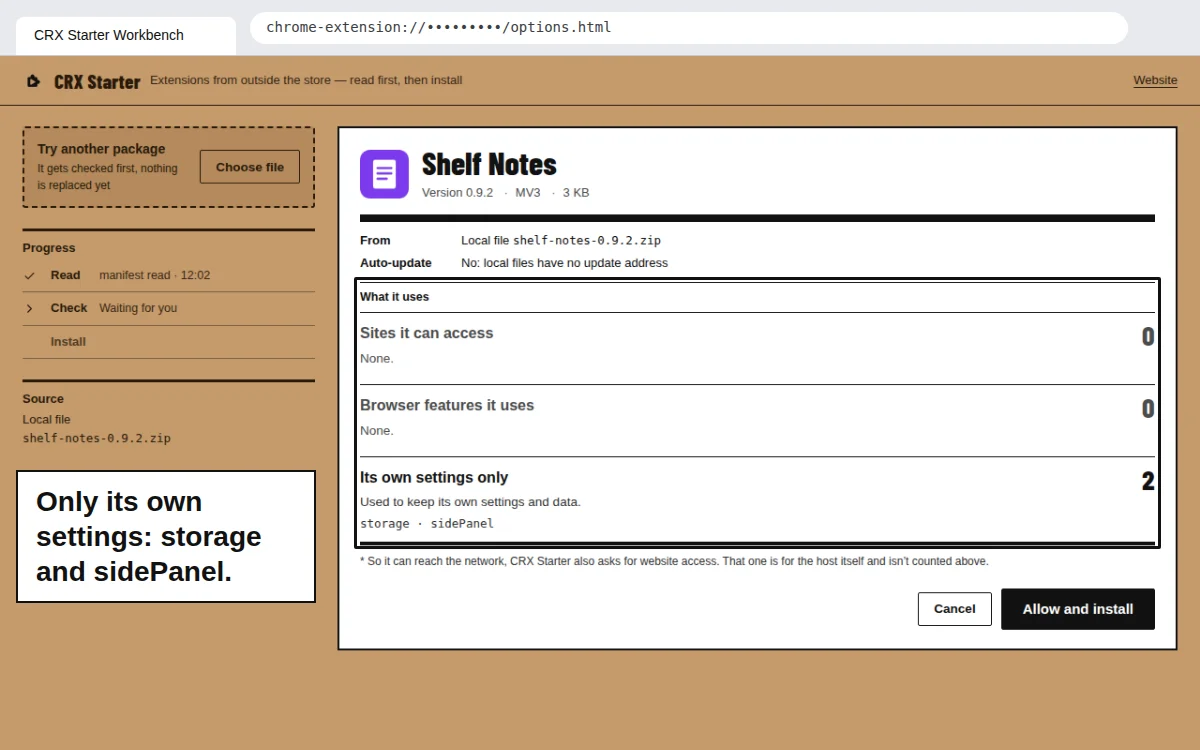
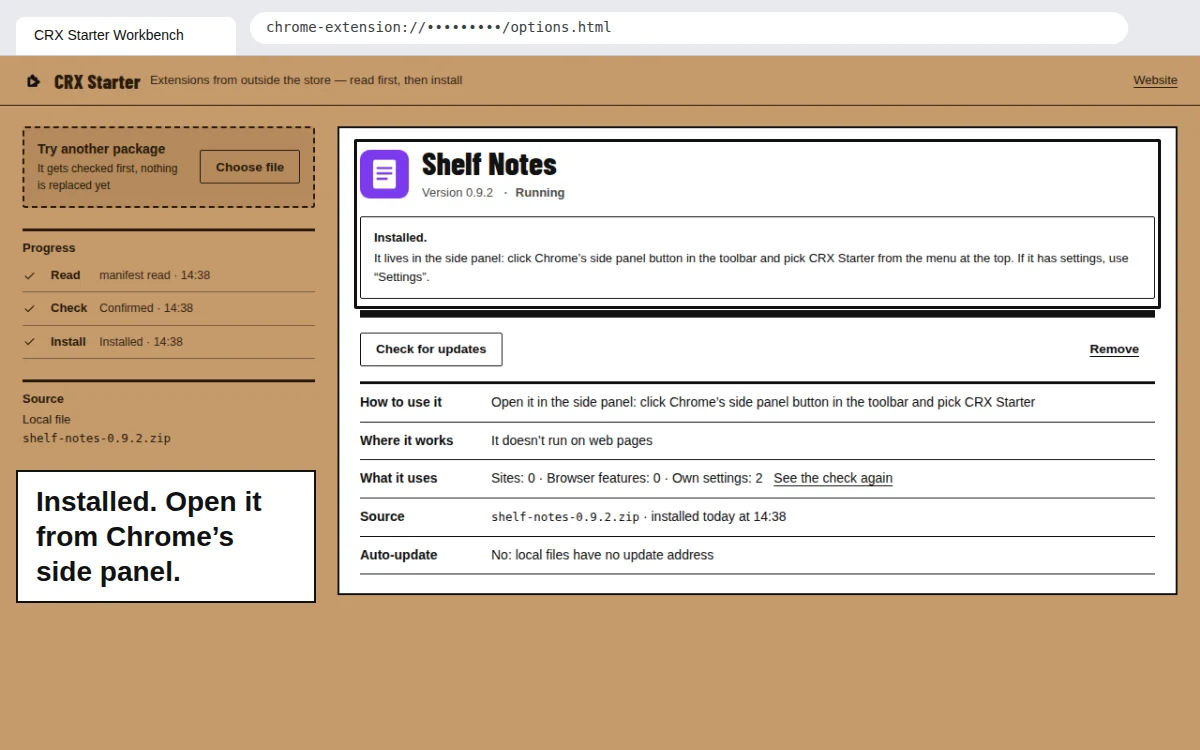
| Steps | Unzip, open chrome://extensions, turn on Developer mode, Load unpacked, pick the folder | Drop the ZIP, read the check, Allow and install |
| Developer Mode | Must stay on | Off |
| Warning when Chrome starts | Possible — see the Developer Mode popup | No |
| See permissions before install | No | Yes |
| Unzipped folder to keep | Yes — delete it and the extension breaks | No |
Updating to a new release
A ZIP has no update address, so it won’t update by itself. When a new release comes out, download its ZIP and drop it in. CRX Starter reads it, shows the check again — useful if the new version asks for more — and says "Installing this replaces Shelf Notes" before it swaps them. Curious why a .crx and a .zip behave differently? See how CRX and ZIP differ.