
Chrome extension permissions table
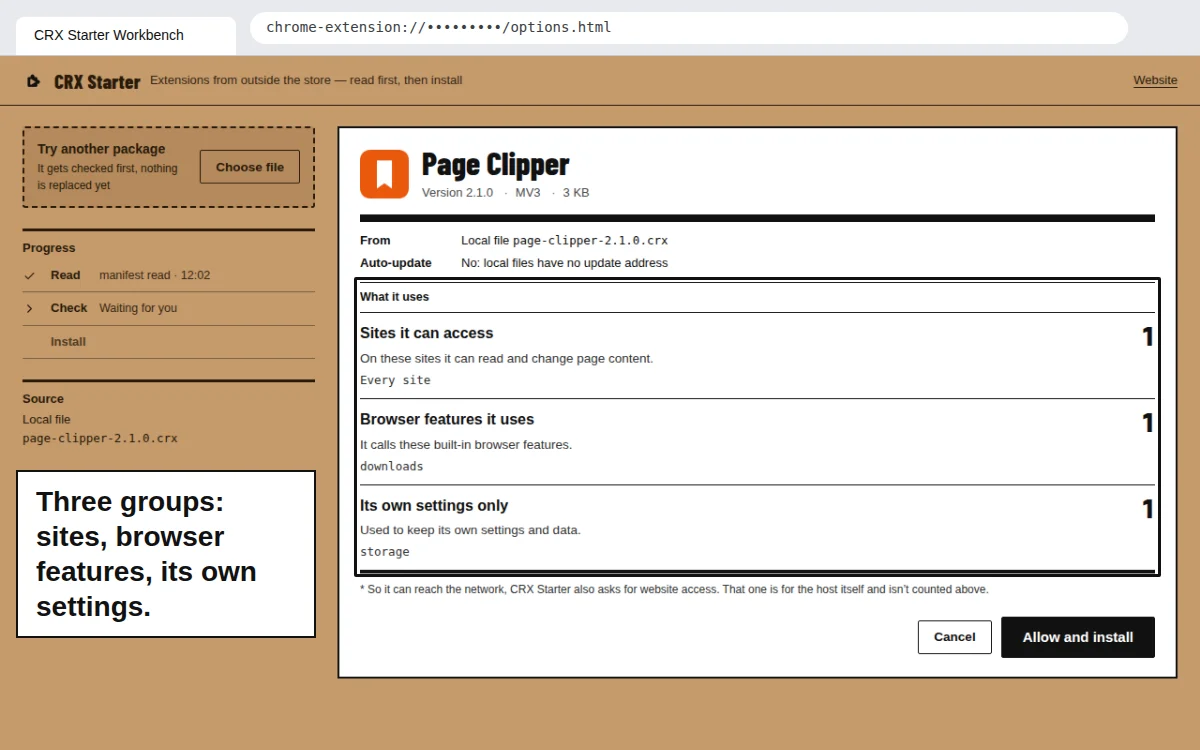
Each permission a Chrome extension can request, the group CRX Starter puts it in, and what it lets the extension do, in plain words.
| Permission | Group | What it can do |
|---|---|---|
| A specific site, e.g. https://support.acme-desk.example/* | Sites | Read and change pages on that site |
| content_scripts matches | Sites | Run its scripts on the sites listed |
| <all_urls>, *://*/*, http(s)://*/* | Sites (shown as “Every site”) | Read and change every site you open |
| activeTab | Browser features | Read the current page after you click it |
| tabs | Browser features | See the titles and addresses of your open tabs |
| scripting, webNavigation | Browser features | Inject scripts into pages it can reach; see where tabs navigate |
| cookies | Browser features | Read and change cookies, including sign-in sessions |
| downloads | Browser features | Start, read and manage your downloads |
| history, bookmarks | Browser features | Read your browsing history or bookmarks |
| webRequest, proxy | Browser features | Watch or reroute your network traffic |
| identity, management, privacy | Browser features | Use your Google identity, manage other extensions, change privacy settings |
| debugger, nativeMessaging | Browser features | Control pages like DevTools; talk to programs on your computer |
| clipboardRead, clipboardWrite, geolocation | Browser features | Read or write your clipboard; get your location |
| storage, unlimitedStorage | Own settings | Save its own settings and data |
| alarms, idle | Own settings | Run on a timer, notice when you’re away |
| notifications | Own settings | Show system notifications |
| contextMenus | Own settings | Add items to the right-click menu |
| sidePanel, offscreen, i18n | Own settings | Show its own panel and pages, translate its own text |
Without CRX Starter: reading manifest.json yourself
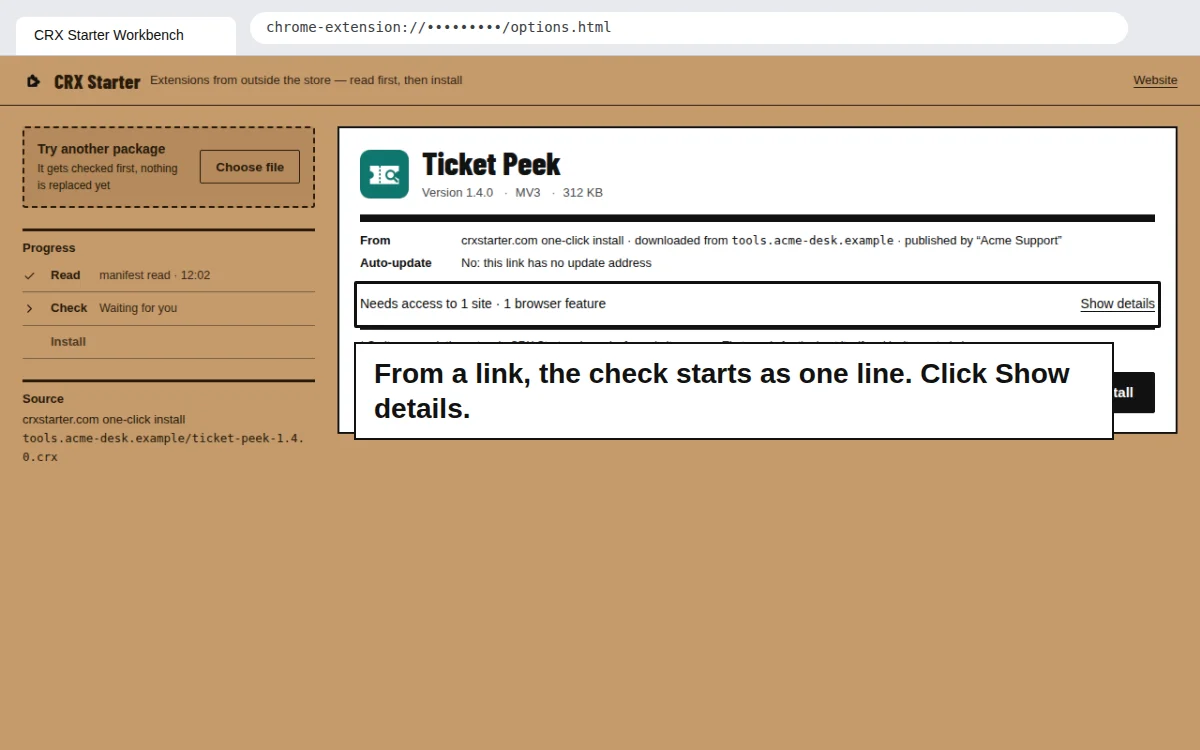
Rename a .crx to .zip (or open the .zip) and open manifest.json in any text editor. Three keys matter: permissions (browser features and its own settings, such as tabs or storage), host_permissions (which sites it can access) and content_scripts → matches (which sites its scripts run on). Also check optional_permissions and optional_host_permissions: the extension can ask for these later. Sort each entry into the groups in the table above. To browse the rest of the files too, open the .crx like a ZIP.
Questions worth asking
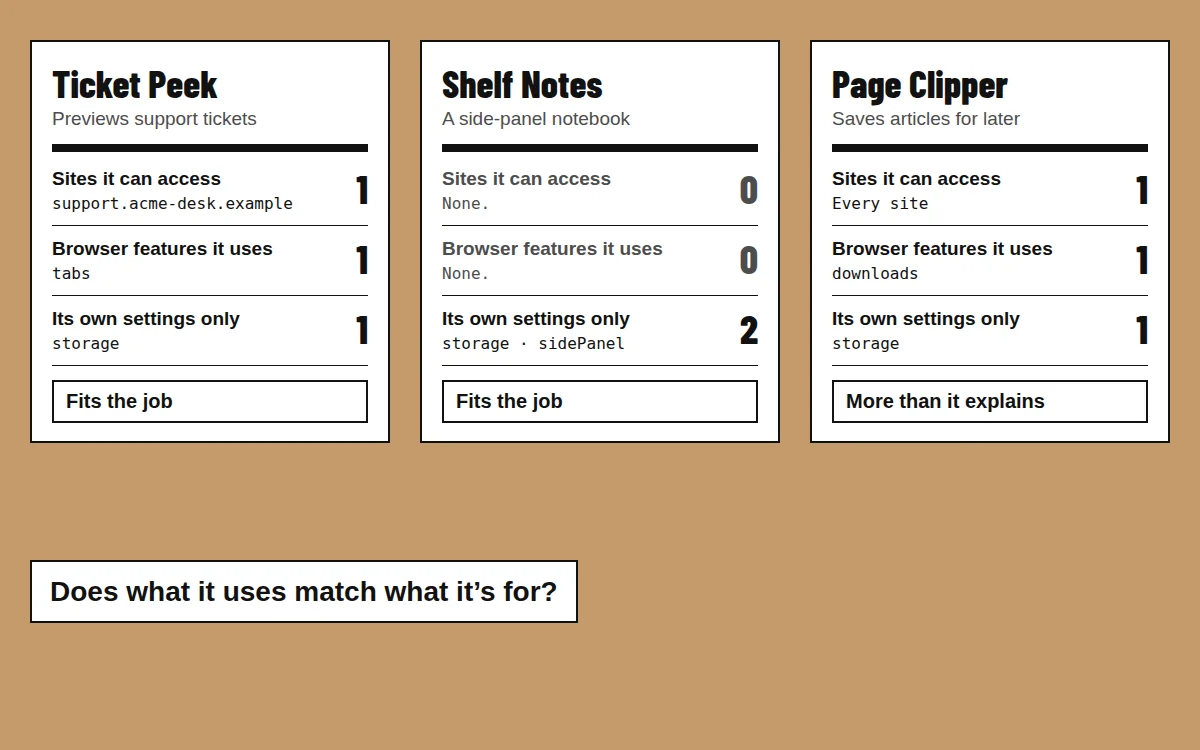
- Does it ask for all sites, when it only works on one?
- Does it use cookies, history or webRequest, when its job has nothing to do with your browsing?
- Does it use nativeMessaging or debugger, and do you know who made it?
- Does a new version ask for more than the last one — and does the changelog say why?
- Can you name the author, and reach them if something goes wrong?
None of these proves an extension is malicious, and a short permission list doesn’t prove it’s safe. Where the file came from still matters most — more on that in is a .crx file safe?
Check before you install
Drop any .crx or .zip into CRX Starter and read the label first. Cancel costs nothing.
Add to Chrome — It's Free